
Guide to TikTok Proxy 2026: Types, Setup, and Best Practices
Learn exactly what a TikTok proxy is, which type is best for beginners, step-by-step setup for desktop and mobile, testing tips, and best practices to keep accounts stable.
Apr 17, 2026



A beginner-friendly guide to downloading files with curl: commands, scripts, resume, auth, verification, troubleshooting, and security tips.
In web development, system administration, data wrangling, etc, downloading files from the internet is a daily task. Using curl can do it faster and more securely. In this guide, we'll dive deep into how to use curl for file downloads:
# Check curl
curl --version
# Save with remote filename (follow redirects)
curl -L -O "https://example.com/file.zip"
# Save with custom name
curl -L -o myfile.zip "https://example.com/file.zip"
# Follow redirects + use server-provided filename (Content-Disposition)
curl -L -J -O "https://short.link/redirect"
# Resume interrupted download (server must support ranges)
curl -C - -O "https://example.com/large.iso"
# Retry + resume + show errors + fail on HTTP errors
curl -L --continue-at - --retry 5 --retry-delay 5 --retry-connrefused -fS -O "https://example.com/large.iso"
# Silent in scripts but show errors and fail on HTTP 4xx/5xx
curl -sS -f -o output.bin "https://example.com/file.bin"
# Create directories automatically when saving nested path
curl --create-dirs -o downloads/subdir/file.zip "URL"
# Check headers / debug TLS
curl -v -L -I "URL"
Before experimenting with large/important downloads, try a tiny text file so you can see how curl behaves:
curl -L -o hello.txt "https://example.com/hello.txt"
cat hello.txt
(Host a small hello.txt on a test server or use a public small text file you control.)
Curl (short for "Client for URLs") is a free, open-source command-line tool for transferring data with many protocols (HTTP/S, FTP, SFTP, etc.). It has been around since 1997, powering from simple file grabs to complex API interactions.
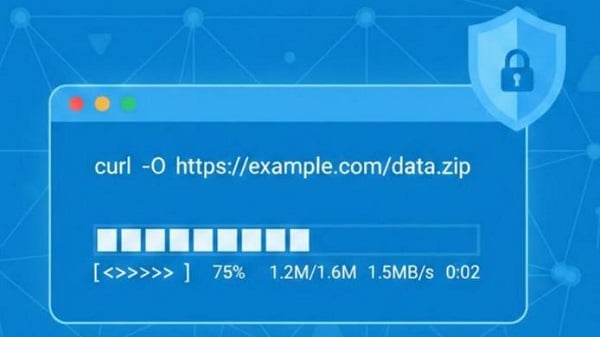
Use it when you want:
Check if curl is available and what it supports:
curl --version
The version output shows supported protocols and features (for example, HTTP/2 or HTTP/3). If you need to install curl, use your platform package manager:
macOS (Homebrew): brew install curl
Debian/Ubuntu: sudo apt update && sudo apt install curl
Windows: recent Windows includes curl; otherwise install via Chocolatey.
Let's start simple. The core syntax for downloading a file with curl is straightforward. By default curl URL prints the response body to your terminal (stdout).
curl -L -O "https://example.com/path/to/file.zip"
-O saves the file using the remote filename; -L follows redirects.
curl -L -o myfile.zip "https://example.com/path/to/file.zip"
-o <file> is safer for predictable naming and avoids silent overwrites.
If a server sends a Content-Disposition header to suggest a filename:
curl -L -J -O "https://example.com/download?id=123"
-J honors the server’s Content-Disposition filename (use with -L).
If the URL contains &, ?, #, or spaces, quote it:
curl -L -o "file.csv" "https://host/path?x=1&y=2"
The ones you’ll use frequently:
-O — save using remote filename
-o <file> — save to a specified filename
-L — follow redirects
-J — honor server Content-Disposition filename
-C - / --continue-at - — resume a partial download
--retry N — retry N times on transient failures
--retry-delay SECONDS — wait between retries
--retry-connrefused — retry on connection refused
-f / --fail — return non-zero on HTTP 4xx/5xx (prevents saving error HTML)
-sS — silent but show errors (-s quiet, -S show error)
-w "%{http_code}" — print HTTP status after transfer
--create-dirs — create local directories when saving nested paths
--limit-rate — throttle download rate
--connect-timeout / --max-time — set timeouts for reliability
Tip: In scripts, use -fS to ensure HTTP errors cause non-zero exit and you still see useful messages.
curl -u username:password -O "https://example.com/secure.zip"
Avoid literal credentials in scripts; prefer environment variables or .netrc.
curl -H "Authorization: Bearer $API_TOKEN" -O "https://api.example.com/data.json"
Keep $API_TOKEN in a secure environment variable or secret store.
Create ~/.netrc:
machine example.com
login myuser
password mypass
Set strict permissions:
chmod 600 ~/.netrc
curl -n -O "https://example.com/protected/file.zip"
curl --cert client.pem --key client-key.pem -O "https://example.com/secure"
Never commit secrets to version control. Use secret-management systems for production credentials.
It's really frustrating when a large download fails at 90% due to a flaky connection.
Resume a partial download (server must support ranges):
curl -C - -O "https://example.com/large.iso"
# same as:
curl --continue-at - -O "https://example.com/large.iso"
Add retries for flaky networks:
curl -L --continue-at - --retry 5 --retry-delay 5 --retry-connrefused -fS -O "https://example.com/large.iso"
Notes:
--retry retries on transient network failures and some HTTP codes.
--retry-connrefused includes connection refused as retryable.
To resume, server must advertise support for ranges (Accept-Ranges: bytes).
If you need parallel segmented downloads for very large files, use a dedicated accelerator (see Resources).
If repeated retries return 403 or you see temporary bans, consider using rotating proxies to reduce repeated rejections, especially when scraping or downloading many files from the same endpoint.
This script is safe for automation: writes to a temp file, resumes, retries, and moves the final file into place only on success.
#!/usr/bin/env bash
set -euo pipefail
URL="$1"
OUT="${2:-$(basename "${URL%%\?*}")}"
RETRIES="${RETRIES:-5}"
RETRY_DELAY="${RETRY_DELAY:-5}"
tmpdir="$(mktemp -d)"
tmp="$tmpdir/partial_download"
trap 'rm -rf "$tmpdir"' EXIT
n=0
while true; do
n=$((n+1))
echo "Attempt $n: downloading $URL -> $OUT"
# -L follow redirects, -sS silent but show errors, -f fail on HTTP errors,
# --continue-at - resume, -o write to tmp, -w print HTTP code
http_code=$(curl -L -sS -f --continue-at - -o "$tmp" -w "%{http_code}" "$URL" || true)
if [[ "$http_code" =~ ^2[0-9][0-9]$ ]]; then
mkdir -p "$(dirname "$OUT")"
mv "$tmp" "$OUT"
echo "Saved $OUT (HTTP $http_code)"
exit 0
else
echo "Download failed (HTTP $http_code)"
if [ "$n" -ge "$RETRIES" ]; then
echo "Reached max retries ($RETRIES)" >&2
exit 1
fi
echo "Retrying in $RETRY_DELAY seconds..."
sleep "$RETRY_DELAY"
fi
done
Usage:
chmod +x download-with-retry.sh
./download-with-retry.sh "https://example.com/large.iso" myfile.iso
Why this is robust:
Downloads into a temp file and only moves it on success (no partial-file confusion).
Uses -f to avoid saving HTML error pages.
Resumes where possible with --continue-at -.
Makes RETRIES and RETRY_DELAY configurable via environment variables.
Always verify critical downloads.
SHA-256 example
curl -sS -o file.zip "https://example.com/file.zip"
echo "expectedhash file.zip" > expected.sha256
sha256sum -c expected.sha256 || { echo "Checksum mismatch" >&2; exit 1; }
If the provider publishes a GPG signature, verify it with the publisher’s public key — signatures are stronger than checksums.
Warning: Avoid piping a download directly into an installer or extractor (curl URL | tar -xz) for critical or privileged systems — download, verify, then extract or execute.
PowerShell historically aliases curl to Invoke-WebRequest. On modern Windows the real curl.exe may exist. If PowerShell behaves oddly, call curl.exe explicitly or use PowerShell-native commands:
PowerShell native:
Invoke-WebRequest -Uri "https://example.com/file.zip" -OutFile "file.zip"
If you install GNU curl via a package manager on Windows, prefer curl.exe in scripts to avoid alias issues
Piping is convenient but risky:
curl -sSL "https://example.com/install.sh" | bash
This runs code without local verification. Safer workflow:
1. Download to a temp file.
2. Verify checksum or signature.
3. Inspect or run in a controlled environment.
Never run remote scripts as root unless you understand and trust the source.
Rate-limit politely: --limit-rate 100k
Proxy: -x http://proxyhost:3128 -U user:pass or use HTTP_PROXY env var
Globbing / multiple files: curl -O "https://example.com/files/file[1-3].jpg" or curl -O "https://example.com/files/{a,b,c}.jpg"
Create nested dirs: --create-dirs -o downloads/subdir/file.zip
Timeouts: --connect-timeout 10 --max-time 300
HTTP/2/3: If curl --version lists support, experiment with --http2 or --http3 (server must support them)
When to use other tools: Use a parallel/segmented downloader if you need to maximize throughput or download many large files concurrently.
If you’re downloading many files from the same host or need to access region-restricted content, consider using proxies to distribute requests and avoid rate limits or IP blocks.
1. Blank or tiny file — likely an HTML error page. Use -f and inspect headers:
curl -L -v -o /dev/null "URL"
2. Login page HTML instead of the file — you need to authenticate (token/cookie).
3. Redirects not followed — add -L.
4. Resume not working — server must support range requests; check Accept-Ranges with:
curl -I "https://example.com/large.iso" | grep -i Accept-Ranges || true
5. TLS/SSL errors — avoid -k in production; use --cacert /path/to/ca.pem for private CAs.
6. DNS/connection errors — common exit codes: 6 (could not resolve), 7 (failed to connect), 28 (timeout).
7. PowerShell oddities — call curl.exe or use Invoke-WebRequest.
8. Partial download duplicate names — use the script approach (temp file then move) to avoid confusion.
6 — Could not resolve host
7 — Failed to connect to host
22 — HTTP returned error (e.g., 404, 403)
28 — Operation timeout (use --max-time)
(You can find the full list in the curl man page.)
Q: How do I resume a download with curl?
A: curl -C - -O URL (server must support range requests).
Q: How do I download a file that requires a bearer token?
A: curl -H "Authorization: Bearer $TOKEN" -o file.zip "URL"
Q: Why is curl printing garbage in my terminal?
A: You downloaded a binary without -o/-O; redirect to a file instead.
Q: How to check success in a script?
A: Use -sS -f -o file and check curl exit code or use -w "%{http_code}" and validate the HTTP status.
Q: How to get server-suggested filename?
A: Use -J with -L: curl -L -J -O "URL"
Start with curl -O URL on a tiny file to learn behavior.
Use -fS in scripts so HTTP errors surface reliably.
Never store secrets in plain text in repos — use env vars or secret stores.
Verify important downloads with checksums or signatures before execution.
Add timeouts and retries for production scripts.
curl can help save files, follow redirects, resume interrupted transfers, and verify downloads, speeding up day-to-day work and empowering automation. Test with a tiny file, use -fS in scripts, write to temp files, then move, and add verification steps for anything you’ll execute or distribute.
< Previous
Next >


 Cancel anytime No credit card required