Curl is one of the easiest ways to inspect what a server sends back after a request. By default, it prints the response body, but the headers are often the most useful part when you are checking status codes, redirects, content type, caching rules, cookies, or API behavior. curl gives you several ways to view that information, including -I for headers only, -i for headers plus body, -D for saved headers, -v for debugging, and -w for script-friendly output. In this guide, we will cover which command to use for each situation, starting with the simplest option and moving toward the most accurate and automation-friendly methods.
Quick Answer
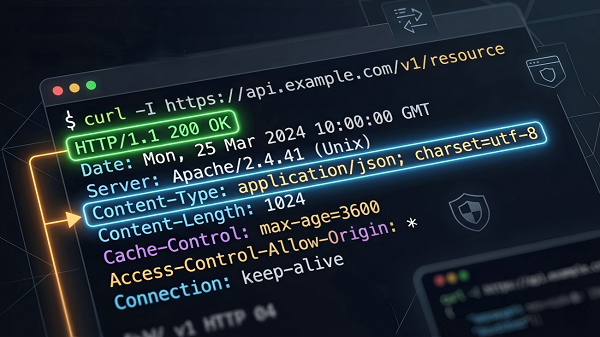
If you only need headers, use curl -I.
If you want headers and body together, use curl -i.
If you want headers from the exact request without downloading the body, use curl -s -D - -o /dev/null.
If you are debugging, use curl -v.
If you need script-friendly output, use -w '%header{name}' or -w '%{header_json}'.
curl -I https://example.com
curl -i https://example.com
curl -s -D - -o /dev/null https://example.com
curl -v https://example.com
curl -s -o /dev/null -w '%header{content-type}\n' https://example.com
curl -s -o /dev/null -w '%{header_json}' https://example.com | jq
1. Show Response Headers Only (Fastest)
Use -I when you want the simplest and fastest header check.
curl -I https://example.com
curl’s --head option sends a HEAD request and returns only the headers. That makes it useful for quick checks of status, content type, caching, or redirects. curl also notes that -X HEAD is not the same thing as --head, so beginners should avoid treating them as interchangeable.
This is the best first command when you just want metadata and do not care about the body.
2. Show Response Headers + Body Together
Use -i when you want to inspect the response headers and the body in one stream.
curl -i https://example.com
In current curl versions, -i is --show-headers. The older name --include still works for compatibility. curl documents that this option writes the response headers into the same output stream as the body, and it points to --dump-header if you want headers saved separately instead.
For cleaner terminal output, pair it with silent mode and error display:
curl -sS -i https://example.com
-s hides the progress meter and error messages, while -S restores error messages when -s is used.
3. Show Headers from the Real Request (No Body)
Use this when the exact request method matters, especially for APIs or verifying the headers returned through a proxy.
curl -s -D - -o /dev/null https://example.com
-D - writes the received protocol headers to standard output, while -o /dev/null discards the body. This is often more accurate than -I because it keeps the real request method and payload intact instead of switching to HEAD. curl also provides --out-null, which is the more efficient and portable version of -o /dev/null, and it was added in 8.16.0.
For a POST request:
curl -s -D - -o /dev/null \
-X POST \
-H "Content-Type: application/json" \
-d '{"key":"value"}' \
https://api.example.com/endpoint
This pattern is the best choice when you want to see what the server returned for the real API call, not for a HEAD probe.
4. Show Request + Response Details(Full Debug)
Use verbose mode when something is broken, and you need to see what curl is doing.
curl -v https://example.com
curl’s verbose output marks request headers with >, response headers with <, data sent with }, data received with {, and connection-level details with *. curl also warns that verbose logs may contain sensitive data, so they should be shared carefully. If your goal is only to see HTTP headers, curl recommends --show-headers or --dump-header instead.
A quieter debugging version is:
curl -sS -v https://example.com
That keeps errors visible while reducing noise from the progress meter.
5. Extract One/More Specific Headers for Scripts
Use -w when you need a clean value for automation.
curl -s -o /dev/null -w '%header{content-type}\n' https://example.com
curl documents %header{name} as the way to print a specific response header from the most recent server response. The header name is case-insensitive, and curl strips leading and trailing whitespace and newlines from the value. This write-out feature was added in 7.84.0.
If you also want the status code:
curl -s -o /dev/null -w 'Status: %{response_code}\nContent-Type: %header{content-type}\n' https://example.com
curl documents response_code as the numerical response code from the last transfer; it was formerly known as http_code.
6. Get All Headers as JSON
Use this when you want structured output instead of parsing plain text.
curl -s -o /dev/null -w '%{header_json}' https://example.com | jq
header_json returns a JSON object containing all HTTP response headers from the most recent transfer. curl stores values as arrays, so duplicate headers are preserved, and the header names are lowercase. This variable was added in 7.83.0.
That makes it a strong option for shell scripts, monitoring, and CI jobs where you need reliable machine-readable output.
7. Follow Redirects Correctly
If the URL may redirect, add -L.
curl -L -I https://short.url
curl -L -s -D - -o /dev/null https://example.com
Without -L, curl stops at the first response, which can make it look like a header is missing when it actually appears on the final destination. curl’s --location option is the standard way to follow redirects.
Common Pitfalls
1. Using -I when the server behaves differently for HEAD and for the real request method.
For API work, -D - -o /dev/null is usually the safer choice because it preserves the actual method and request body. curl explicitly notes that -I uses HEAD, and that -X HEAD is not enough to make a proper HEAD request.
2. Forgetting -L on redirected URLs.
That causes you to inspect only the first hop instead of the final response.
3. Trying to parse -v output in scripts.
Verbose mode is for humans; -w '%header{name}' and %{header_json} are better for automation.
4. Using -s and then wondering why failures disappeared.
curl documents that -s suppresses progress, warning messages, and error messages; add -S if you still want failures to show up.
Cheat Sheet
curl -I https://example.com
# headers only
curl -i https://example.com
# headers + body
curl -s -D - -o /dev/null https://example.com
# headers from the real request, no body
curl -v https://example.com
# full request/response debug
curl -s -o /dev/null -w '%header{content-type}\n' https://example.com
# one header
curl -s -o /dev/null -w '%{header_json}' https://example.com | jq
# all headers as JSON
Final Thoughts
For most users, the best answer to curl show response headers is a simple decision tree: use -I for a quick header check, -i when you want headers and body together, -D - -o /dev/null when you need the real request’s headers, -v when debugging, and -w when scripting. That structure matches how curl works today and gives beginners the shortest path from search intent to the right command.