
Python Web Scraping for Beginners: Complete Step-by-Step Guide (2026)
Learn Python internet scraping step by step, from HTML basics and BeautifulSoup to pagination, data cleaning, dynamic JavaScript pages, and common beginner mistakes.
Apr 9, 2026



ERR_FAILED (or net::ERR_FAILED) in Google Chrome? Learn exactly what it means and fix it fast with step-by-step solutions for cache, extensions, DNS, localhost, file uploads, Cloudflare, and more.
If you see ERR_FAILED or net::ERR_FAILED (often paired with “This site can’t be reached”) in Google Chrome, the request did not complete — but Chrome gives you almost no details why. Good news: Most people fix this in under 5 minutes by following the quick steps below.
ERR_FAILED is Chrome’s generic way of saying “the request did not complete,” without giving the exact reason. It can be caused by the browser, your network, security software, or the website itself.
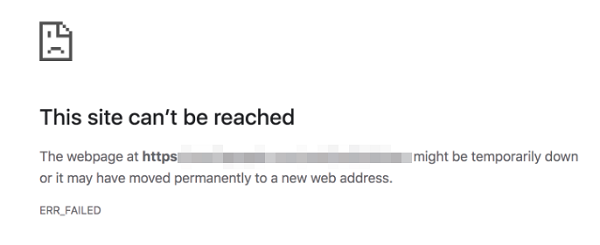
It commonly appears when:
A page refuses to load
A file upload stops halfway
An API request fails in Chrome DevTools
Localhost or a development server does not respond correctly
A security tool blocks the request
A proxy, CDN, or server times out
Quick way to narrow it down:
Only in Chrome → likely browser or local issue.
Across browsers or devices → network, server, or CDN issue.
The error usually falls into one of these five groups:
Browser-side (cache, extensions, outdated Chrome, Service Workers)
Network/DNS problems
Security software/VPN interference
Server/development issues (CORS, SSL, timeouts)
CDN/infrastructure blocking (especially Cloudflare)
Use this simple table to zero in on the problem:
| Scenario | Likely Cause |
| Only one website fails | Server or site-specific issue |
| All websites fail in Chrome | Browser, profile, extensions, or local network |
| Only one device is affected | Local system problem |
| Only one network is affected | DNS, router, VPN, proxy, or firewall |
| Only Chrome is affected | Extensions, cache, profile corruption |
| Only uploads or API requests fail | CORS, timeouts, security rules, or proxy settings |

Try these in exact order. The majority of users solve the error with steps 1–5.
Open the same page in another browser (Edge, Firefox) or on your phone. If it fails everywhere, the issue is your network, router, or the site itself — not Chrome.
Windows: Ctrl + F5
Mac: Cmd + Shift + R
Windows: Ctrl + Shift + N
Mac: Cmd + Shift + N
If it works here → an extension is causing the problem.
Go to chrome://settings/clearBrowserData
Select:
Time range: All time → Clear data → Restart Chrome.
Go to chrome://extensions/
Toggle everything off, test the page, then re-enable one by one.
Go to chrome://settings/system
Turn off Use hardware acceleration when available → Relaunch Chrome.
Windows (Command Prompt as Admin):
ipconfig /flushdns
netsh winsock reset
netsh int ip reset
ipconfig /release
ipconfig /renew
Restart your computer.
macOS (Terminal):
sudo dscacheutil -flushcache
sudo killall -HUP mDNSResponder
Reconnect to the network.
Turn them off → reload the page. If it works, add the site to the allowlist.
Try Google (8.8.8.8 / 8.8.4.4) or Cloudflare (1.1.1.1 / 1.0.0.1). Restart Chrome.
Go to chrome://settings/help → Check for updates → Restart.
Go to chrome://settings/reset → Restore settings to original defaults.
Bonus quick check: Make sure your computer’s date and time are set correctly — wrong system time often triggers silent ERR_FAILED errors.
Verify correct Access-Control-Allow-Origin header (never use * with credentials).
Use a trusted local SSL certificate.
In DevTools → Application tab → unregister any broken Service Worker.
Clear any Service Worker cookies named after your app.
For React/Vite/etc.: double-check dev server proxy settings.
Increase server request timeout and upload size limits.
Check reverse-proxy timeout settings.
Pro tip: In Chrome DevTools → Network tab, look at the failed request. Empty or zero Response Headers usually means a timeout.
Look in server/proxy logs for “context timeout”, “canceled”, or “request terminated”.
Test by temporarily bypassing the proxy.
If the server or CDN seems to be filtering your IP, test the upload from a different IP address quickly.
Check Cloudflare Security Events / Firewall / Bot Management.
Look for rate limiting, Managed Challenge, Bot Fight Mode, or challenge/block actions.
Whitelist the IP or adjust the rule causing the block.
Suspicious request headers are a common culprit on POST/API requests.
If Cloudflare appears to be blocking your IP, try a reliable proxy to route your request through a different residential IP and test whether the block is IP-specific.
Create a new Chrome profile.
Test in Chrome Canary.
Check endpoint protection/antivirus rules.
Try a different network to see if it’s organization-wide.
1. Open DevTools (F12) → Network tab and inspect the failed request.
2. Right-click the request → Copy as cURL and test it in your terminal.
3. Go to chrome://net-export/ to export full network logs.
4. Check Service Workers in DevTools → Application tab.
Still not fixed? Reply with your exact scenario (localhost? upload? specific site?), what you’ve already tried, and a screenshot of the Network tab — the cause is almost always visible there or in server logs.
You cannot prevent every network failure, but you can reduce the chance dramatically:
Keep Chrome updated
Clear cache every few weeks
Use only essential extensions
Test sites in multiple browsers
Stick with stable DNS servers
Monitor server, CDN, and proxy logs
For developers: validate CORS, cache-control headers, and upload limits before release
1. What does ERR_FAILED mean in Chrome?
Chrome could not complete the request, but it doesn’t specify why.
2. Is ERR_FAILED a browser error or a server error?
It can be either. Chrome-only = browser issue. Happens everywhere = server/network/CDN issue.
3. Why does ERR_FAILED happen on localhost?
Usually CORS, SSL certificate, Service Worker, or proxy misconfiguration.
4. Why does ERR_FAILED happen during uploads?
Timeouts, size limits, proxy interruptions, or security filters.
5. Why does ERR_FAILED appear only in Chrome?
Cache, extensions, profile corruption, or Chrome-specific settings.
6. What is the fastest fix to try first?
Incognito mode → clear cache & cookies → disable extensions.
ERR_FAILED is deliberately vague, but the cause is almost always one of the fixes above. Start with the quick steps and diagnosis table, then move to the specific scenarios if needed. For everyday users, cache/extensions or DNS fixes solve it. For developers and IT teams, it’s usually CORS, Service Workers, proxy timeouts, or Cloudflare rules.
Next >


 Cancel anytime No credit card required