
Guide to TikTok Proxy 2026: Types, Setup, and Best Practices
Learn exactly what a TikTok proxy is, which type is best for beginners, step-by-step setup for desktop and mobile, testing tips, and best practices to keep accounts stable.
Apr 17, 2026



Learn what "refused to connect" / ERR_CONNECTION_REFUSED means and follow step-by-step fixes for Chrome, Firefox, Windows, Mac, and mobile in 2026.
Tried to visit a website, only to be confused by a browser error that says "This site can’t be reached" or "ERR_CONNECTION_REFUSED"? This common issue, like the err_connection_refused error in Chrome on Windows, happens when your computer tries to connect to a website's server but gets rejected—like knocking on a door that won’t open. Most cases are temporary glitches on your end, your network, or the site's side, and you can resolve them yourself without advanced skills or paid tools. In this guide, we'll break it down simply: Explain what the error means, why it happens (with common causes), quick tests to diagnose it, and step-by-step fixes starting with the easiest.
ERR_CONNECTION_REFUSED in some browsers), your browser tried to open a connection to the website, but the server refused to accept it. This is different from a “404 Not Found” (the server answered while the page doesn’t exist) or a “504 Gateway Timeout” (a server took too long to respond).
Tip for Beginners: If it's just one site, it's probably the server's issue. Check quickly with a site like downforeveryoneorjustme.com to see if it's down for everyone. If many sites are affected, focus on your setup.
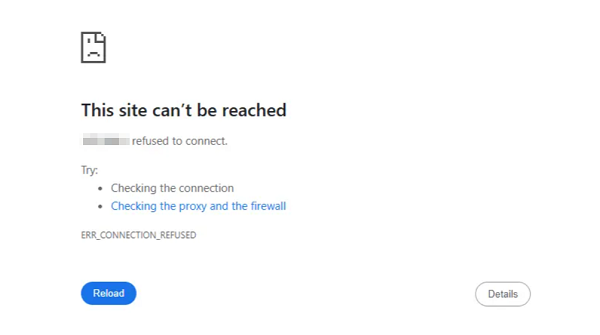
Google Chrome
A page that says “This site can’t be reached — ERR_CONNECTION_REFUSED.”
Mozilla Firefox
A message such as “Unable to connect” or “The connection was refused by the server.”
Causes fall into three main categories: your device/browser (client-side), your network, or the website's server.
Browser cache, cookies, or extensions interfering.
Proxy or VPN misconfigured, sending traffic wrong.
Hosts file redirecting the site to the wrong address (e.g., to localhost).
Local firewall or antivirus blocking the connection.
Rare: System issues like corrupted network settings (e.g., Winsock on Windows).
Router or modem glitches, or misconfigured settings.
ISP blocking the site or unstable connection.
DNS resolving to the wrong address (cached or faulty).
No service listening on the port (e.g., server down or app crashed).
Server firewall rejecting connections.
Overloaded server refusing new ones.
Misconfiguration, like binding only to localhost instead of all interfaces.
Most fixes are tool-free, but for deeper checks:
Free antivirus scanner: Malwarebytes (download from malwarebytes.com).
Online port checker: yougetsignal.com/tools/open-ports (safer alternative to telnet).
Command-line tools: Built-in like ping, or PowerShell for Windows.
These quick tests help figure out where the problem is (you, network, or server). Do them before advanced fixes to save time. If the quick fixes below don't work, use these to pinpoint, then jump to the relevant detailed steps.
1. Test from Another Network: Load the site on your phone's cellular data (not Wi-Fi). If it works, the issue is your home network/ISP. On mobile: Turn off Wi-Fi in settings.
Tip: If you want to quickly test how the website responds from another location, consider an ISP proxy. If the site works through another IP but not on your local network, the issue may be related to your ISP, firewall rules, or IP blocking.
2. Ping the Domain: Open Command Prompt (Windows: Search "cmd") or Terminal (Mac/Linux). Type ping example.com (replace with your site). If it resolves an IP but says "Request timed out," it might be a port issue (some servers block pings, so not always conclusive).
3. Test the Port Directly: Use a modern tool instead of telnet (deprecated for security). On Windows: Open PowerShell and type Test-NetConnection -ComputerName example.com -Port 80 (or 443 for HTTPS). "TcpTestSucceeded: False" means refusal or block. On Mac/Linux: Use nc -vz example.com 80. Or try an online tool like yougetsignal.com.
Why? This confirms if the service accepts connections. Difficulty: Medium—copy-paste commands.
4. For Site Owners/Devs: Check server listening: On the server, type sudo netstat -tnlp | grep :80 or ss -tnlp | grep :80 in terminal. Shows if a process is bound to the port.
These tests answer "Is it just me?"—if it fails everywhere, it's likely the server.
Start from the top; test the site after each step to see if it's fixed.
Press F5 or Ctrl+R (Cmd+R on Mac).
Why: Clears temporary glitches. Takes seconds.
Close and reopen the browser. If no luck, restart your computer/phone. On mobile: Swipe away the app or restart the device.
Why: Clears temporary stalls. Takes 1-2 minutes.
Use Edge, Firefox, or Safari if Chrome fails. Or open incognito/private mode (Ctrl+Shift+N in Chrome).
Why: Bypasses extensions and cache to pinpoint browser issues.
If it works, the problem is your main browser—proceed to clear cache.
In Chrome: Three dots > More tools > Clear browsing data > Select "Cached images and files" and "Cookies" > Time range: All time > Clear data.
Firefox/Edge: Settings > Privacy > Clear data.
On Android: Settings > Apps > Chrome > Storage > Clear Cache.
On iOS: Settings > Safari > Clear History and Website Data (or per-app in browser settings).
Why: Stale data causes refusals.
Note: This logs you out temporarily—safe, just relogin. Common Pitfall: Forget to restart the browser after clearing.
In Chrome: Three dots > Extensions > Manage extensions > Toggle off one by one, testing the site.
Why: Faulty extensions can block connections. Test in incognito first, as it disables most.
In browser settings or system: Disable any VPN app or proxy extensions. Retry the site.
Why: Misconfigurations route traffic wrong.
Unplug for 30 seconds, plug back in, wait 2 minutes. Restart your device too.
Why: Resets network hangs. Great for Wi-Fi issues.
Windows (Run Command Prompt as Administrator): ipconfig /flushdns (See screenshot above.)
macOS: sudo dscacheutil -flushcache; sudo killall -HUP mDNSResponder
Linux: sudo systemd-resolve --flush-caches
Why: Removes stale or incorrect DNS entries.
Common Pitfall: Restart your browser after this step.
Use Google Public DNS temporarily: Set IPv4 to 8.8.8.8 and 8.8.4.4 in network settings (Windows: Settings > Network & Internet > Change adapter options > Right-click > Properties > IPv4). Revert later if needed.
Why: Rules out ISP DNS issues.
Disable briefly and test; re-enable immediately. If it works, add a site exception.
Why: Security software can block mistakenly. Risk Warning: Only do this on trusted sites.
Command Prompt as Admin: netsh winsock reset and netsh int ip reset. Reboot.
Why: Fixes corrupted settings.
Run a free scan with Malwarebytes. Remove any threats.
Why: Malware can interfere with connections.
Windows: Open Notepad as Admin > File > Open > C:\Windows\System32\drivers\etc\hosts. Remove bad entries for the site.
Mac/Linux: Terminal: sudo nano /etc/hosts.
Why: Bad redirects cause refusals. Backup first.
If diagnostics show the server refuses from multiple networks:
Check web server running: sudo ss -tnlp | grep :80 (or :443).
Inspect firewall (ufw/iptables) and logs (e.g., NGINX/Apache).
Check app logs for crashes.
If using CDN/load balancer, verify health checks.
Confirm DNS records (A/AAAA) are correct.
Local Development (localhost / 127.0.0.1): Ensure dev server is running and bound to 0.0.0.0. Some TLDs like .dev force HTTPS; use .localhost.
Corporate Networks/Proxies: Contact IT for proxy or DNS issues.
Public Wi-Fi: Accept captive portal terms first.
Mobile-Only: Clear app cache in settings (Android: Apps > Browser > Storage; iOS: Offload app or clear data).
Pitfall: Chrome Flags: If persistent, try chrome://flags > Search "QUIC" > Disable experimental QUIC protocol > Relaunch.
Keep browser and OS up to date.
Avoid untrusted extensions.
Keep a small periodic habit: clear cache every month.
Backup hosts file before editing it.
For site owners: Use uptime monitors like UptimeRobot
Monitor network stability with speed tests.
Q: Is this likely a virus?
A: Rarely. More often it’s a network server or configuration issue. Run a malware scan if you suspect malicious interference.
Q: Will fixing this cost money?
A: No — almost all troubleshooting steps are free.
Q: What if the site is down for everyone?
A: If status checkers show the site is down, wait or contact the site’s support/owner.
Q: When should I contact my ISP?
A: If multiple devices can't reach many sites, or tests show ISP-level drops.
Q: For multiple sites?
A: Prioritize network steps like DNS flush and router restart.
The “refused to connect” error is a signal to check systematically: start with the browser, then local network, then server. Most beginner-friendly fixes (incognito, device switch, DNS flush, router restart) resolve the majority of cases. If advanced tests show widespread refusal, contact the site owner. With these steps, you'll fix err_connection_refused issues on Chrome, Windows, or any setup quickly.
< Previous
Next >


 Cancel anytime No credit card required