
Sticky vs Rotating Proxies: Which One Should You Use?
Learn the difference between sticky vs rotating proxies, when to use each, and how to choose the right option for scraping, logins, checkout flows, and account tasks.
Apr 1, 2026



earn exactly what “sent an invalid response” means and fix ERR_SSL_PROTOCOL_ERROR fast on localhost or live websites. Step-by-step troubleshooting that works in Chrome (and Chromium browsers).
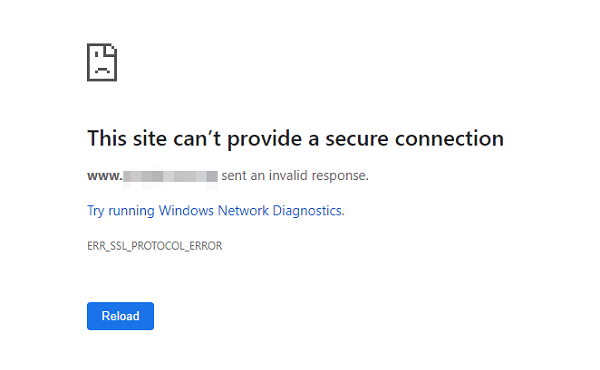
When Chrome displays “This site can’t provide a secure connection” and the page says “sent an invalid response,” it means the browser reached the server, but the SSL/TLS handshake failed. This is the ERR_SSL_PROTOCOL_ERROR.
The good news? This error is almost always caused by one of just a handful of very fixable issues — most commonly on localhost during development, or by cached browser rules, wrong system time, or antivirus HTTPS scanning.
This message appears during the SSL/TLS handshake. Your browser tried to establish a secure HTTPS connection, but the server’s response was invalid or unexpected.
Common causes include:
Using HTTPS on localhost when your local dev server only supports HTTP
Missing, expired, or untrusted self-signed certificate
Cached HSTS rules forcing HTTPS on localhost
Incorrect system date and time
Antivirus/firewall HTTPS traffic inspection
Outdated browser or OS
Server-side TLS misconfiguration (on live sites)
Quick tip: This error is specific to Chrome and Chromium-based browsers (Edge, Brave, Opera, etc.). Firefox usually shows a different message.
Answer these three quick questions to know exactly which fix path to follow:
Is the address a local development URL (localhost, 127.0.0.1, or ::1)?
Does the site work in a different browser or in Incognito/Private mode?
Is the issue happening on one website only, or on every HTTPS site?
Your diagnosis:
Only localhost fails → Local development or browser policy problem.
Only one live site fails → Site has a certificate or redirect issue.
Every HTTPS site fails → Problem is on your device, clock, browser, or security software.
Follow this exact sequence for the fastest results:
1. Switch localhost to HTTP
2. Try 127.0.0.1 instead of localhost
3. Clear HSTS (chrome://net-internals/#hsts)
4. Clear cache + flush socket pools
5. Set system date/time to automatic
6. Test in Incognito mode
7. Disable extensions
8. Turn off antivirus HTTPS scanning
9. Update browser and OS
10. If it’s a live site you don’t control → contact the owner with the SSL Labs result
Localhost errors almost always happen because you’re forcing HTTPS when the dev server is running plain HTTP.
Change:
https://localhost:3000
to:
http://localhost:3000
or
http://127.0.0.1:3000
Go to: chrome://net-internals/#hsts
Under “Delete domain security policies”, type localhost and click Delete.
Fully close and reopen Chrome.
Try:
http://127.0.0.1:3000
or
http://[::1]:3000
Check your terminal/console for the exact protocol and port.
Best tool: mkcert (free, trusted by Chrome).
Install mkcert (see mkcert.dev).
Run: mkcert -install
Run: mkcert localhost 127.0.0.1 ::1
Point your dev server to the generated .pem files.
1. Test in Incognito/Private mode
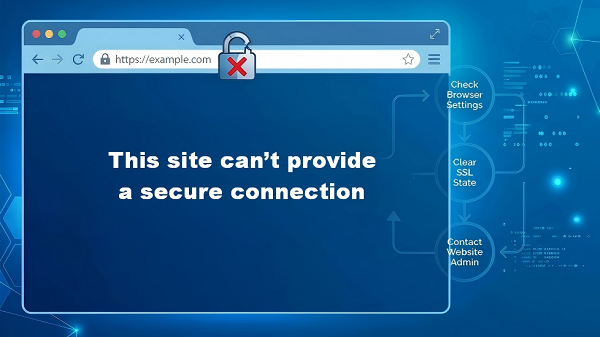
2. Clear cache, cookies, and SSL state (Chrome)
3. Fix your system date and time (set to automatic)
Tip for proxy users: If you’re using a proxy, temporarily disable it or switch to a “no-inspection” / “bypass SSL” mode. Many proxy services perform man-in-the-middle SSL inspection that breaks the handshake and triggers “sent an invalid response.”
4. Disable extensions temporarily
5. Check antivirus or firewall HTTPS inspection
6. Update browser and OS
If the site fails on multiple browsers/devices and it’s not your localhost setup, the server owner needs to fix it.
Common causes:
Expired or missing certificate
Incomplete certificate chain
Broken redirect rules or HSTS header errors
Outdated TLS version or weak ciphers
Load balancer / CDN / proxy misconfiguration
Use HTTP by default for local development unless HTTPS is required
Keep your system clock set to automatic
Update Chrome and your OS regularly
Clear HSTS/SSL state when switching between projects
Use mkcert for any project that needs local HTTPS
Set up certificate monitoring alerts
1. Why does localhost show “sent an invalid response”?
Because the browser is trying to make a secure HTTPS connection, but your local server is serving plain HTTP or using an untrusted certificate.
2. Is this always an SSL certificate problem?
No. The most common causes are HSTS cache, browser cache, wrong system time, extensions, or antivirus inspection.
3. Why does it happen in one browser but not another?
Browser-specific cache, HSTS rules, extensions, or security settings.
4. Can antivirus software cause this error?
Yes — very often. Any tool that does “HTTPS scanning” can break the handshake.
5. Why does it only happen on localhost after I enabled HTTPS once?
The browser cached an HSTS rule. Clearing it at chrome://net-internals/#hsts fixes it permanently.
6. When should I contact the website owner?
If the error happens on multiple devices and browsers, and it’s not your local development environment.
The “sent an invalid response” error (ERR_SSL_PROTOCOL_ERROR) is almost never a permanent problem. In the vast majority of cases, switching to HTTP on localhost, clearing HSTS, or fixing your system clock solves it instantly. Follow the checklist above, and you’ll be back online in minutes. You can also bookmark this page — you’ll probably need it again the next time you spin up a new dev project.
Next >


 Cancel anytime No credit card required