
Python Web Scraping for Beginners: Complete Step-by-Step Guide (2026)
Learn Python internet scraping step by step, from HTML basics and BeautifulSoup to pagination, data cleaning, dynamic JavaScript pages, and common beginner mistakes.
Apr 9, 2026



Learn how to combine incognito mode with proxies to hide your IP—step-by-step setup for Chrome/Firefox/mobile, leak tests, and beginner tips.
Every click sends signals: your IP, cookies, and browser fingerprint. Many users turn to "incognito proxy" setups to stay anonymous, addressing two main goals: (1) no saved local traces (cookies, history), and (2) hiding your real IP/address from websites, ad networks, or ISPs. Combining private mode with proxies significantly improved both local and network-level privacy. This guide covers what an incognito proxy is & why need it, how to choose a type and provider, setup guides for Chrome/Firefox and mobile, and common troubleshooting.
Open a private/incognito window + route traffic through a proxy → layered privacy.
HTTP/HTTPS proxies suit most takes; choose SOCKS5 for apps or non-HTTP traffic.
Test with whatismyip.com, browserleaks.com/webrtc, and ipleak.net (a 2025 favorite for comprehensive checks).
Disable WebRTC or use an extension to prevent IP leaks.
Choose a provider with rotation/sticky sessions, clear logging rules, and geo coverage—e.g., GoProxy.
In 2025, look for AI integrations for smarter IP rotation to mimic human behavior and reduce blocks.
Proxies are neutral tools — their legality depends on how you use them. Always:
Comply with laws and website terms of service.
Avoid scraping personal data or automating actions that violate rules.
Use proxies responsibly for privacy, testing, and legitimate research.
Incognito mode (like Chrome's private browsing) prevents your browser from saving history, cookies, or site data on your device. It's great for quick, local privacy—like using a shared computer without leaving traces. However, it doesn't hide your IP address or encrypt your traffic, so your ISP, websites, or even hackers on public Wi-Fi can still see what you're doing.
A proxy server acts as a middleman between your connected device and the internet, routing your requests through a different IP address. This can mask your real location and identity.
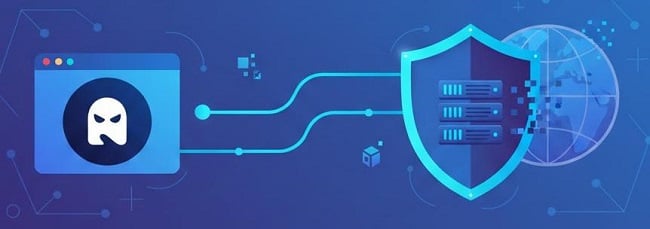
An "incognito proxy" combines these two—using a proxy while in incognito mode—for layered protection. This setup ensures no local data is stored and your online footprint is hidden from external trackers.
Open incognito → browser sends requests to proxy → proxy forwards to site → site replies to proxy → proxy returns data to browser. Close window → local data gone; site sees proxy IP.
Casual Privacy: Using public Wi-Fi without leaving local traces—e.g., browsing at a coffee shop without your ISP logging sites.
Geo-Restricted Access: See content that’s only available in other countries, like streaming shows while traveling.
Ad Verification & QA: View ads from other regions to check placements, useful for marketers testing campaigns.
Market Research / Price Comparison: Gather unbiased search results from different regions, avoiding price hikes based on your location.
Multi-Account Management: Run several accounts for testing or social media management without cross-contamination—pair with anti-detect browsers for fingerprint spoofing.
Web Scraping & Automation (Ethical and Permitted): Rotate IPs to avoid rate limits and blocking, ideal for developers collecting public data.
| Type | Best for | Pros | Cons |
| HTTP/HTTPS | Regular browsing | Easy, often fast | Limited to web traffic |
| SOCKS5 | Apps, torrents, SSH tunnels | Protocol-agnostic | Slightly more setup |
| Residential IPs | Lower CAPTCHA/block rates | Looks like home users | More expensive |
| Datacenter IPs | Speed & price | Fast, cheap | Easier to detect |
| Mobile (4G/5G) | Mobile emulation | Very low block rates | Costly, lower throughput |
Tip: For beginners, start with residential proxies or mobile proxies to avoid detection bans. In 2025, mobile proxies have surged in popularity (demand tripled since 2023) for their real-user emulation and stability. Choose plans with session persistence (sticky sessions for stable logins) and rotation features.
Look for:
Start with a small starter plan with sticky sessions for browsing and switch to rotating residential pools for higher-volume tasks.
Setting up is easier than it sounds—think of it like adding a filter to your internet. We'll focus on Chrome and Firefox, as they're most popular. Always choose a reputable provider with above features, like GoProxy for secure, user-friendly proxies.
1. System vs. Browser Proxy: Chrome (desktop) uses OS/system proxy settings—so configuring the system covers incognito too. Firefox sets it per-browser (keeps system untouched).
2. Quick Verify Tool: After setup, visit whatismyip.com in incognito to confirm IP change.
Sign up (free trials available). Select a plan: residential for authenticity or datacenter for speed.
Get details from dashboard: IP, port, username, password.
Chrome uses OS proxy settings:
1. Windows: Settings → Network & Internet → Proxy → Manual proxy setup → set Address and Port → save.
2. macOS: System Preferences → Network → Advanced → Proxies → tick HTTP/HTTPS or SOCKS → enter details → OK → Apply.
3. Open a new Incognito window (Ctrl+Shift+N) and visit https://whatismyip.com.
If credentials needed: Use http://username:password@host:port in extensions, or input when prompted.
1. Menu → Settings → General → Network Settings → Manual proxy configuration.
2. Fill host and port for HTTP/HTTPS or SOCKS; enable “Use this proxy for all protocols” if needed.
3. Click OK → open Private Window → verify.
Android Wi-Fi (system level): Settings → Network & internet → Wi-Fi → long-press network → Modify network → Advanced options → Proxy → Manual → set host/port.
iOS Wi-Fi: Settings → Wi-Fi → tap info icon (i) next to network → Configure Proxy → Manual → enter host/port and credentials.
Notes: Mobile per-app proxying is limited; consider a specialized apps for full control. In 2025, mobile proxies support 5G for faster, realistic emulation.
Install an extension like Proxy SwitchyOmega(visit guide), enable for incognito in Chrome extensions, configure creds, then use in Incognito—standard windows stay normal.
Run these three tests in your incognito/private window:
1. IP & Geo Check: https://whatismyip.com → Should show proxy IP/location.
2. WebRTC Leak: https://browserleaks.com/webrtc → Check “Local/Public IPs.” If real IP shows, leak!
3. DNS Leak: https://ipleak.net → If ISP DNS appears, fix with proxy DNS settings.
Fix WebRTC: Disable in browser or use an extension. Why this matters: Leaks undo your privacy—always verify first.
Mobile Users: Use Orbot for proxy in private browsing; great for on-the-go anonymity.
Multi-Account Management: Pair with anti-detect browsers for spoofing fingerprints like screen size or typing speed.
Speed Issues: Choose nearby servers to cut lag—e.g., US servers for North American users.
Chrome: make sure system proxy changed (not just extension).
Firefox: ensure manual proxy set in Network Settings.
Use curl in terminal: curl ifconfig.me to confirm outside browser. (Curl is a free command-line tool).
Recheck username/password, port. Some providers require IP whitelisting.
Disable WebRTC, use extension, or test with browserleaks.com/webrtc.
Switch to datacenter or closer region; avoid peak hours. Upgrade if needed.
Move to rotating residential/mobile, reduce request rate, warm up IP.
Once setup works, level up (optional for beginners):
Isolate tasks: Use separate browser profiles per account.
Warm up accounts: Browse normally 10–20 minutes from one IP before automating.
Rotation Strategy: Sticky for logins; per-request for scraping—AI smart rotation adapts automatically.
Avoid Burst Traffic: Randomize timing for human-like behavior.
CAPTCHA Handling: Residential/mobile reduce them; use compliant solving services if terms allow.
Q: Does incognito mode hide my IP?
A: No—incognito mode only prevents local history and cookies from persisting. A proxy hides your IP.
Q: Which proxy is best for avoiding CAPTCHAs?
A: Residential or mobile proxies typically have lower CAPTCHA rates.
Q: Will my ISP still see my traffic?
A: If you use a proxy, your ISP can see you connected to the proxy but not the destination site contents if HTTPS is used. For full hiding consider combining a VPN.
Q: Can I use proxies on mobile?
A: Yes—via Wi-Fi proxy settings or apps; per-app proxying is limited on stock OS—specialized apps can help.
Q: Are incognito proxies legal?
A: Using proxies is legal in most places, but misuse (fraud, unauthorized scraping) can be illegal or violate site terms — use responsibly.
An incognito proxy is a practical shield in a tracked world: Browser erases local traces, proxy hides IP. For beginners, start with HTTP/HTTPS for browsing and SOCKS5 for more. Try a free GoProxy trial, verify with tests, and scale confidently.
< Previous
Next >


 Cancel anytime No credit card required